Getting Started with Git
What is Git? its three states and the basic workflow

What is Git?
Snapshots, Not Differences🗄
The major difference between Git and any other VCS is that Git stores snapshots, while other system store file differences.
Most other versioning systems store data as changes to a base version of each file. However. Git stores data as snapshots of the project over time.
Git thinks of its data more like a series of snapshots of a miniature filesystem. With Git, every time you commit, or save the state of your project, Git basically takes a picture of what all your files look like at that moment and stores a reference to that snapshot.
To be efficient, if files have not changed, Git doesn’t store the file again, just a link to the previous identical file it has already stored. Git thinks about its data more like a stream of snapshots.
Nearly Every Operation Is Local 🖥
Most operations in Git need only local files and resources to operate — generally no information is needed from another computer on your network.
Git simply reads project data directly from your local database, no server access is necessary. This also means that there is very little you can’t do if you’re offline.
Git Has Integrity 🔐
Everything in Git is checksummed (SHA-1 hash) before it is stored and is then referred to by that checksum. So, any change in file or directory structure will change its checksum, which is detected by Git. This means it’s impossible to change the contents of any file or directory without Git knowing about it.
You can’t lose information in transit or get file corruption without Git being able to detect it.
Git stores everything in its database not by file name but by the hash value of its contents.
Git Generally Only Adds Data ✅
When you do actions in Git, nearly all of them only add data to the Git database. As with any VCS, you can lose or mess up changes you haven’t committed yet, but after you commit a snapshot into Git, it is very difficult to lose. Especially if you regularly push your database to another repository
The Three States Of Git 🗄
Git has three main states that your files can reside in: modified, staged, and committed:
Modified means that you have changed the file but have not committed it to your database yet.
Staged means that you have marked a modified file in its current version to go into your next commit snapshot.
Committed means that the data is safely stored in your local database.
This leads us to the three main sections of a Git project: the working tree, the staging area, and the Git directory.
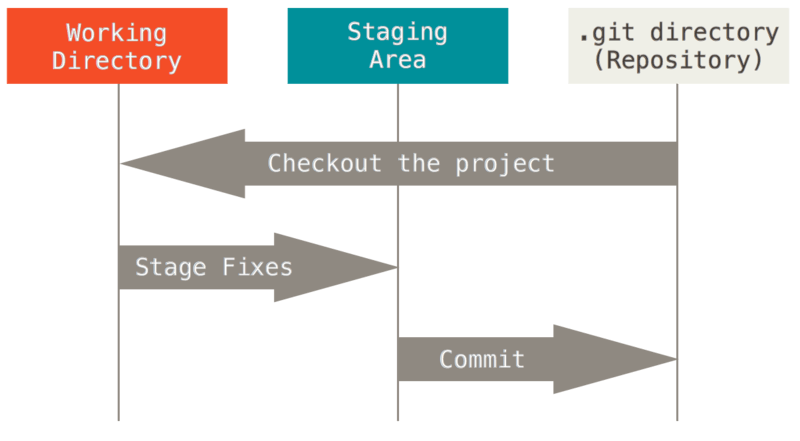
Working tree, staging area, and Git directory (source: git-scm.com)
The working tree is a single checkout of one version of the project. These files are pulled out of the compressed database in the Git directory and placed on disk for you to use or modify.
The staging area is a file, generally contained in your Git directory, that stores information about what will go into your next commit. Its technical name in Git parlance is the “index”, but the phrase “staging area” works just as well.
The Git directory is where Git stores the metadata and object database for your project. This is the most important part of Git, and it is what is copied when you clone a repository from another computer.
The basic Git workflow goes something like this:
You modify files in your working tree.
You selectively stage just those changes you want to be part of your next commit, which adds only those changes to the staging area.
You do a commit, which takes the files as they are in the staging area and stores that snapshot permanently to your Git directory.
In the second article of this series, I will post about Git installation and configurations. The third would be about Git basics and getting a Git repository.
References
Chacon, S. and Straub, B. (2014) Pro Git. 2nd ed. Berlin, Germany: APress.
Book (2014) Git-scm.com. Available at: https://git-scm.com/book/en/v2/ (Accessed: March 22, 2024).
About the author
Most often use technologies like PHP, Laravel, JavaScript, SQL and Linux. Portsmouth university alumnus. Like a one-line, elegant algorithm.
Comments
Join the discussionNo comments yet. Be the first to comment.
